await io.input.text('Company name') waits until someone answers. io offers exactly the components you register. Each one is its own package, named after its method: io.input.text() comes from @awaitio/input-text. Components that only show something in a page are display components.
Install the ones you use, or write your own, and register them in components when you create the app:
app.ts
Available components
Each card is one package and opens its page: all its props, what it returns and how the server checks the answer.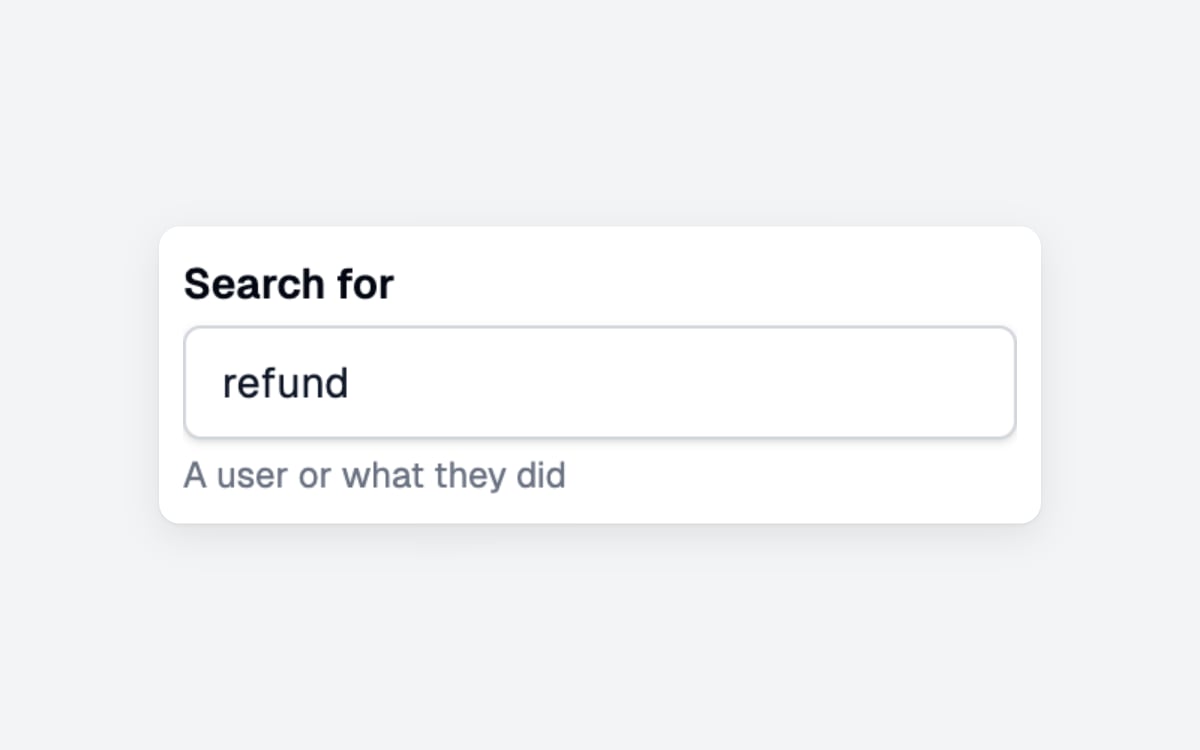
Input Text
io.input.text() asks for one line of text and returns a string.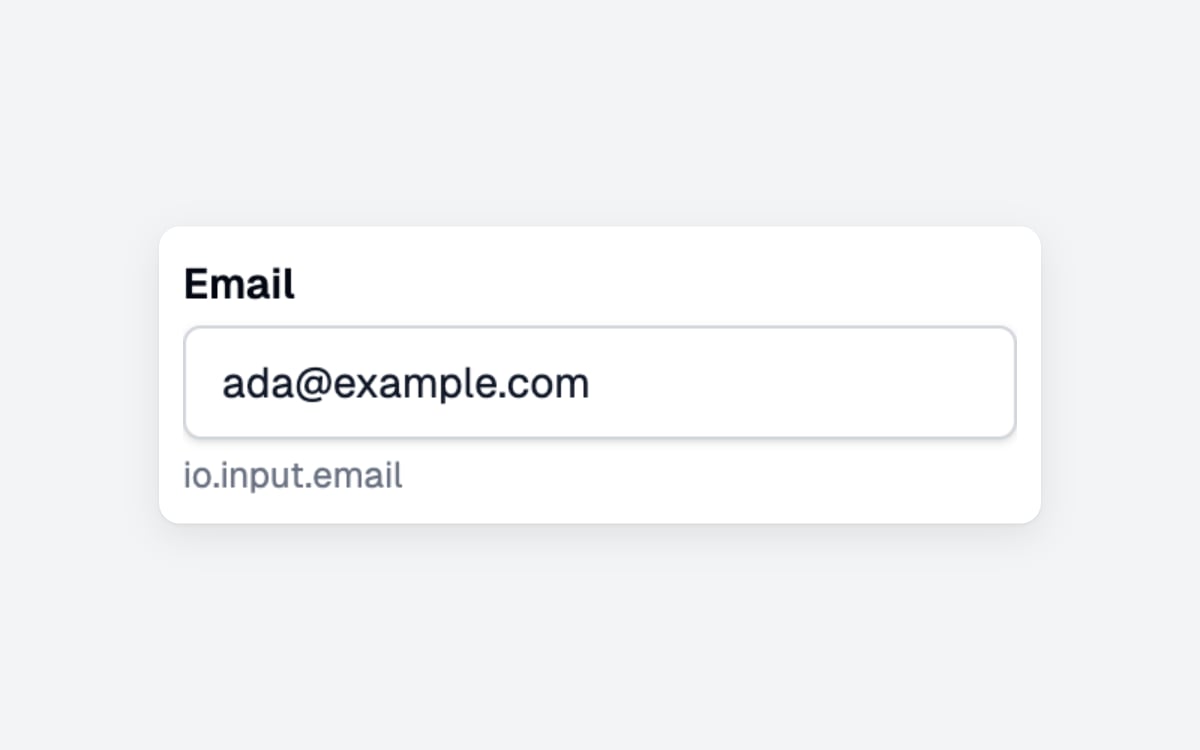
Input Email
io.input.email() asks for an email address and returns it as a string.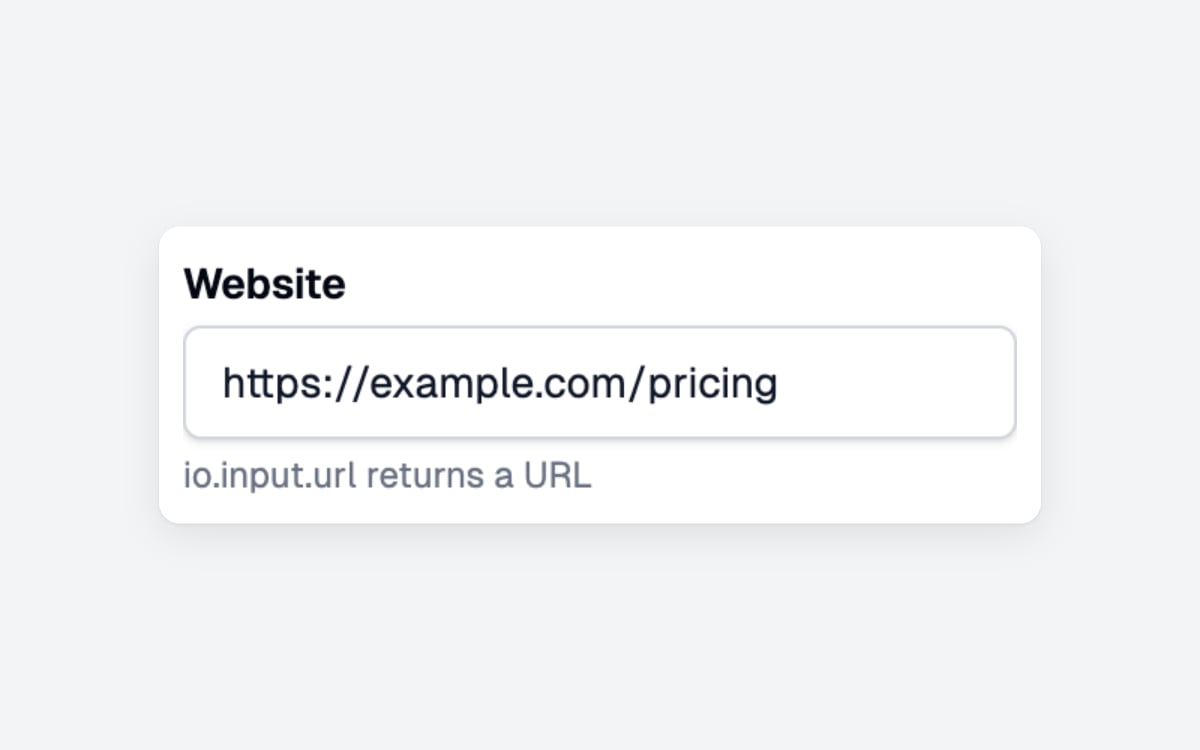
Input URL
io.input.url() asks for a web address and returns a URL.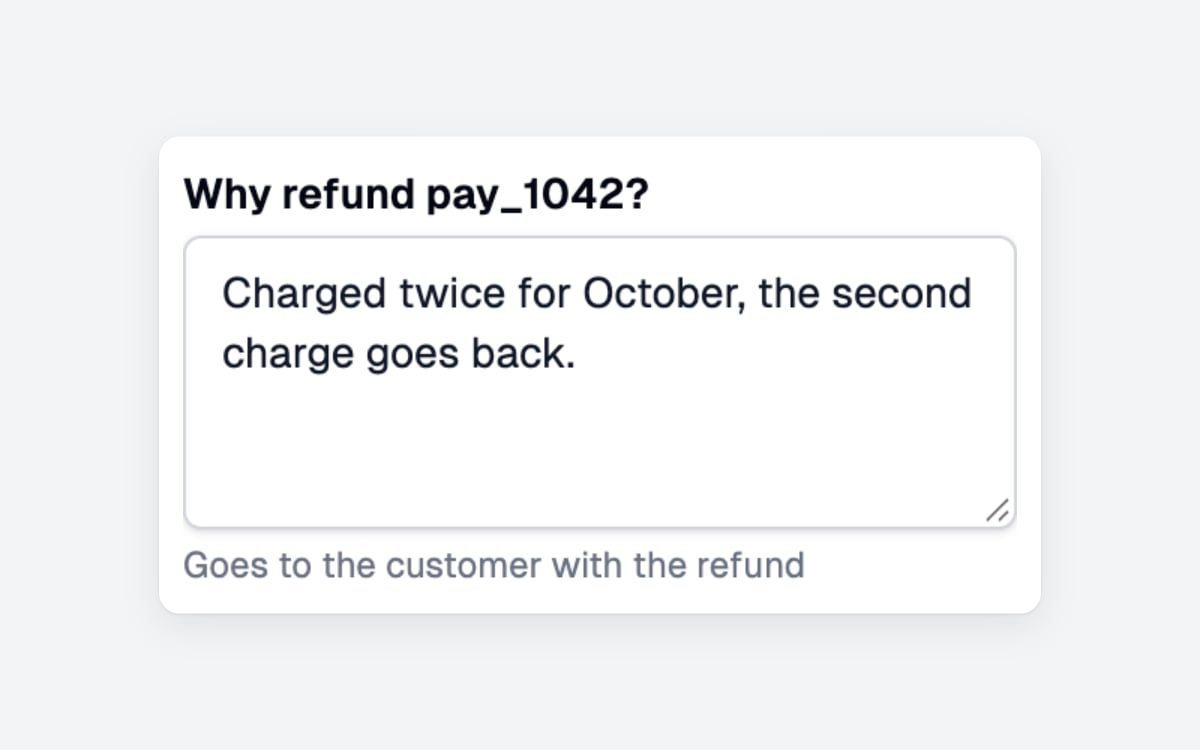
Input Textarea
io.input.textarea() asks for longer text over a few lines and returns a string.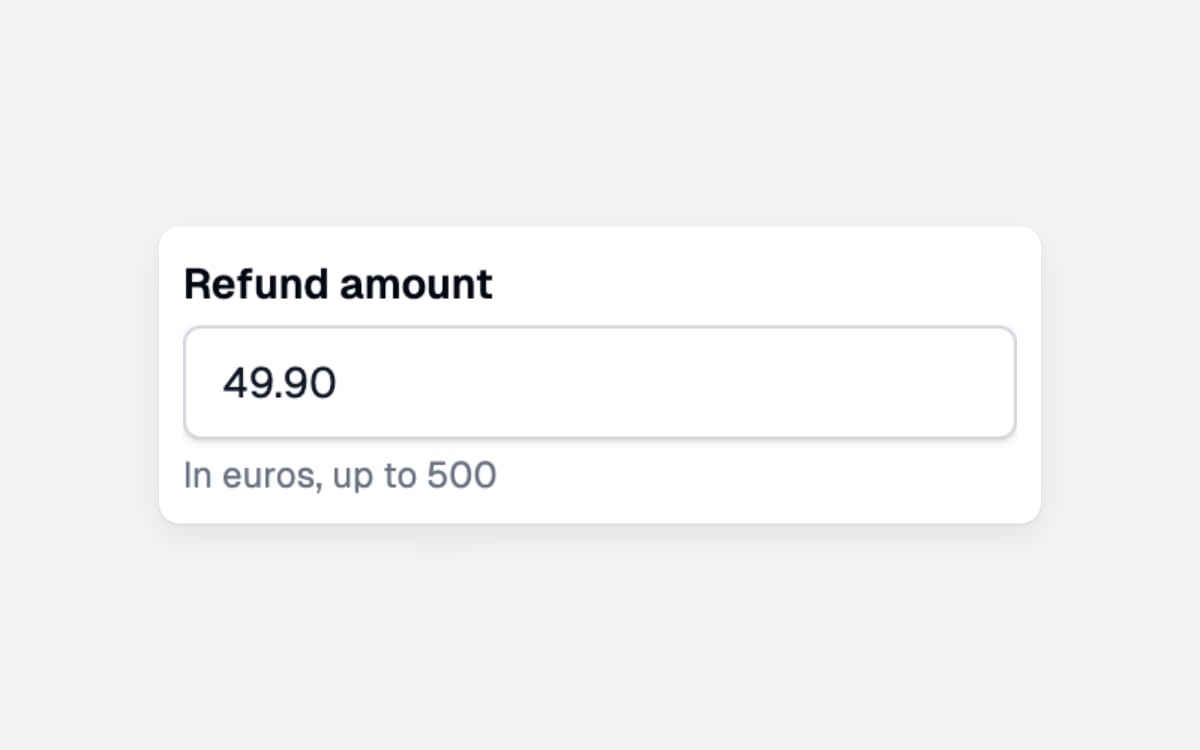
Input Number
io.input.number() asks for a number with optional limits and returns a number.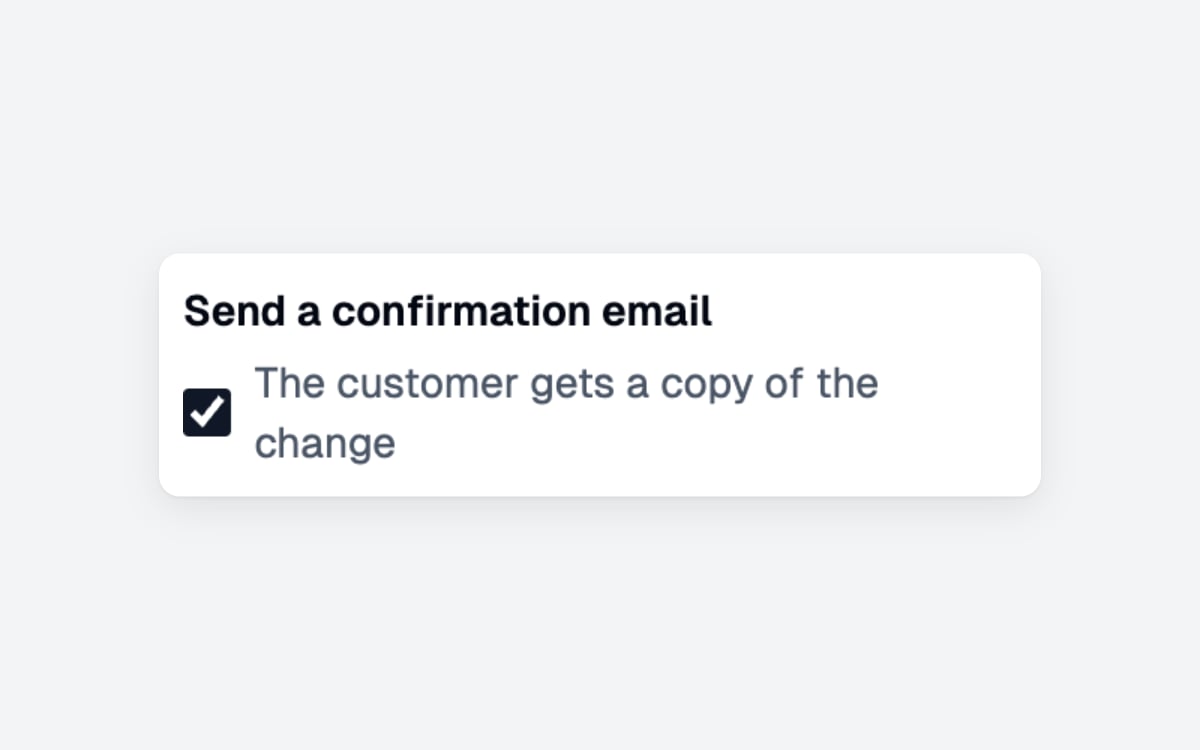
Input Boolean
io.input.boolean() asks a yes or no question with a checkbox and returns a boolean.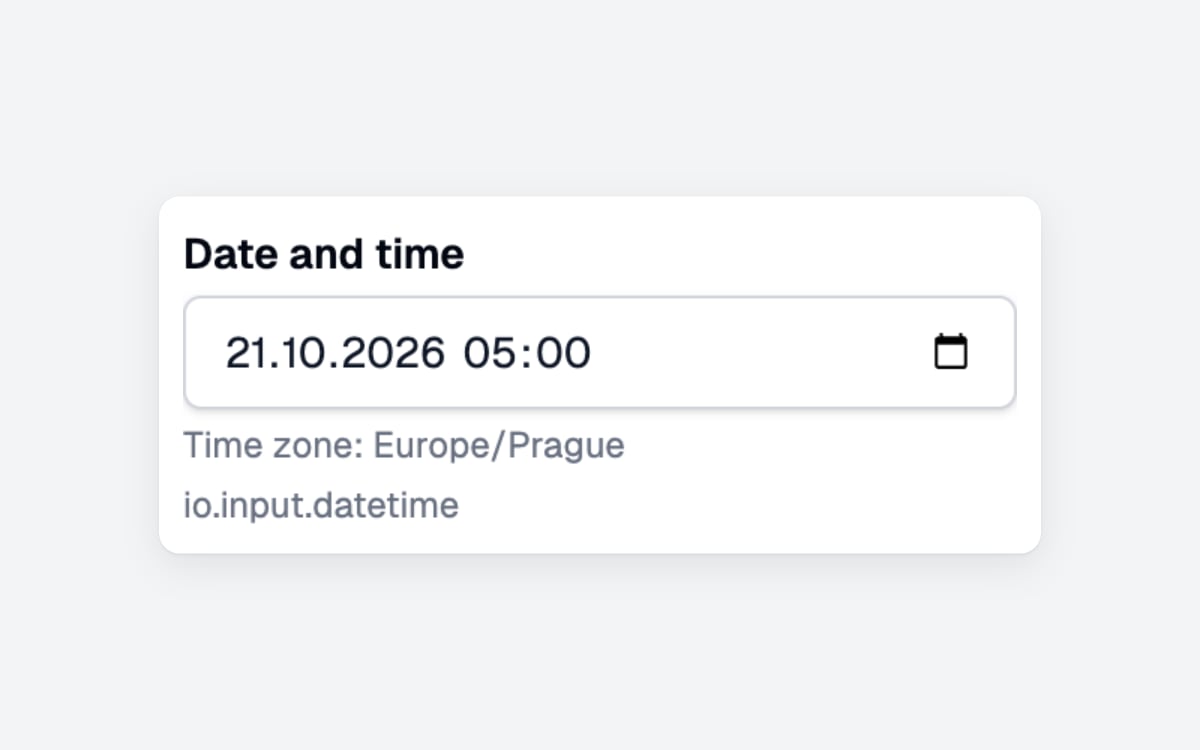
Input Datetime
io.input.datetime() asks for a date and a time and returns a luxon DateTime.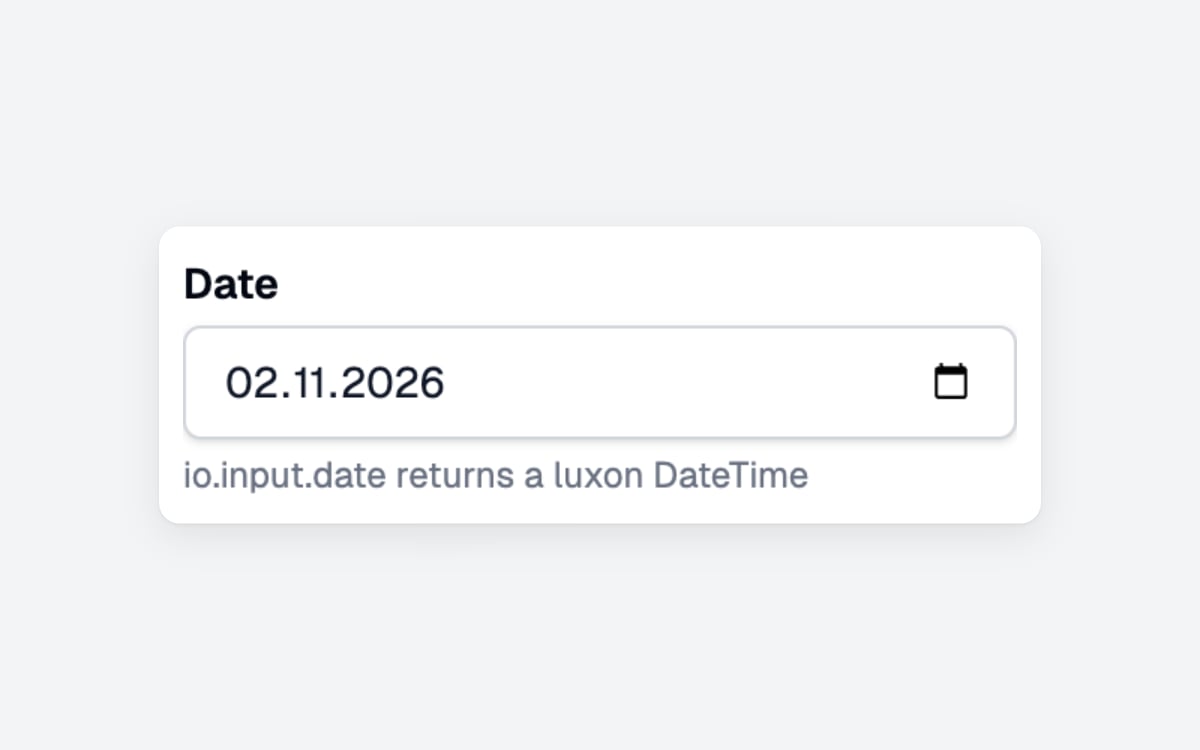
Input Date
io.input.date() asks for a calendar date and returns a luxon DateTime.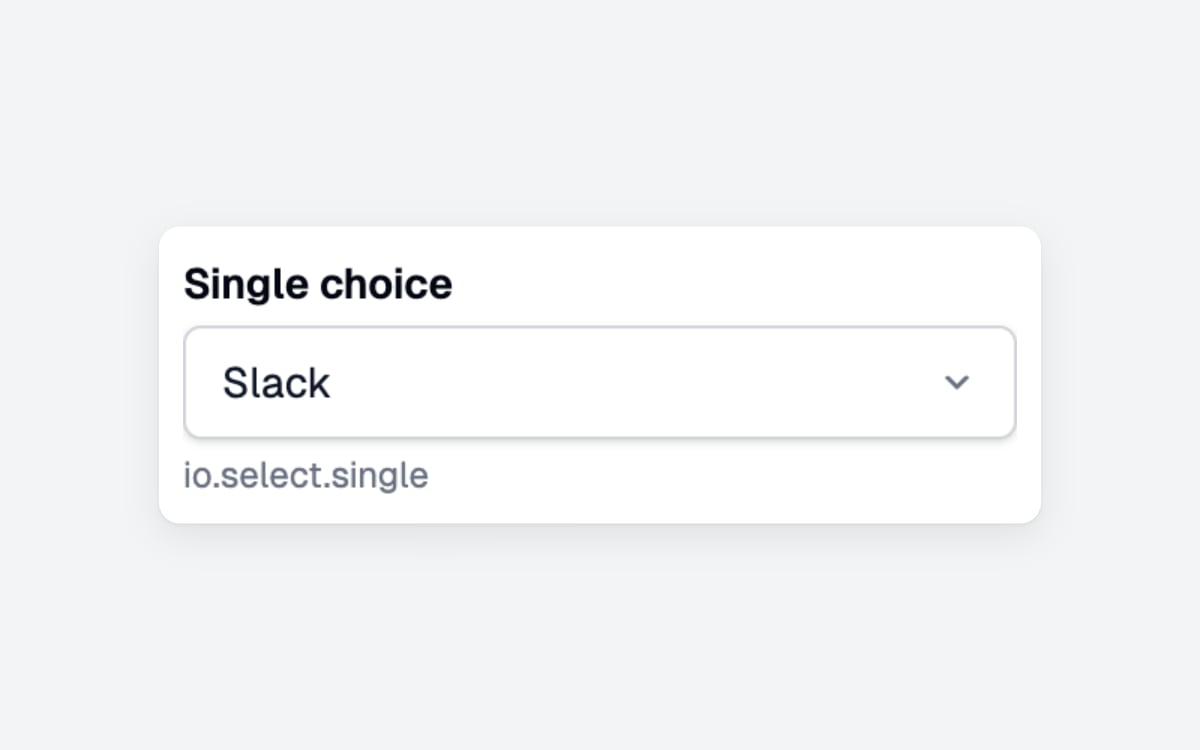
Select Single
io.select.single() asks to pick one option from a drop-down and returns the chosen option.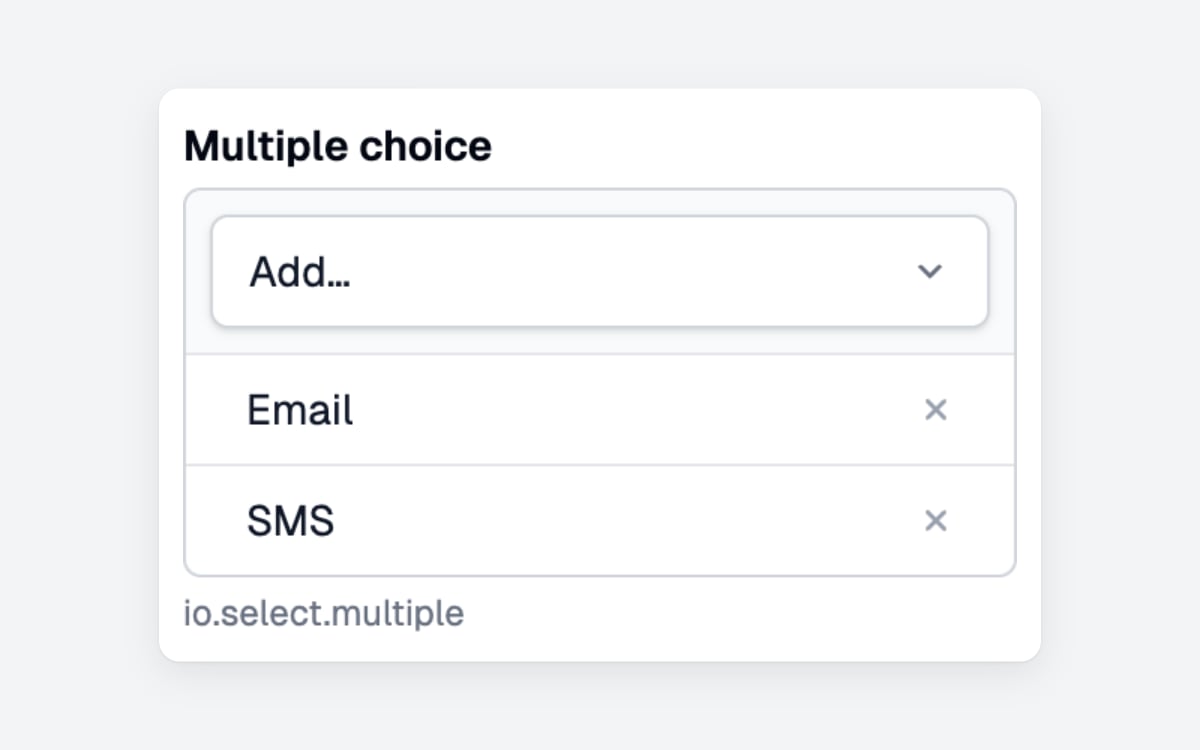
Select Multiple
io.select.multiple() asks to pick several options, listed under a drop-down, and returns the chosen options.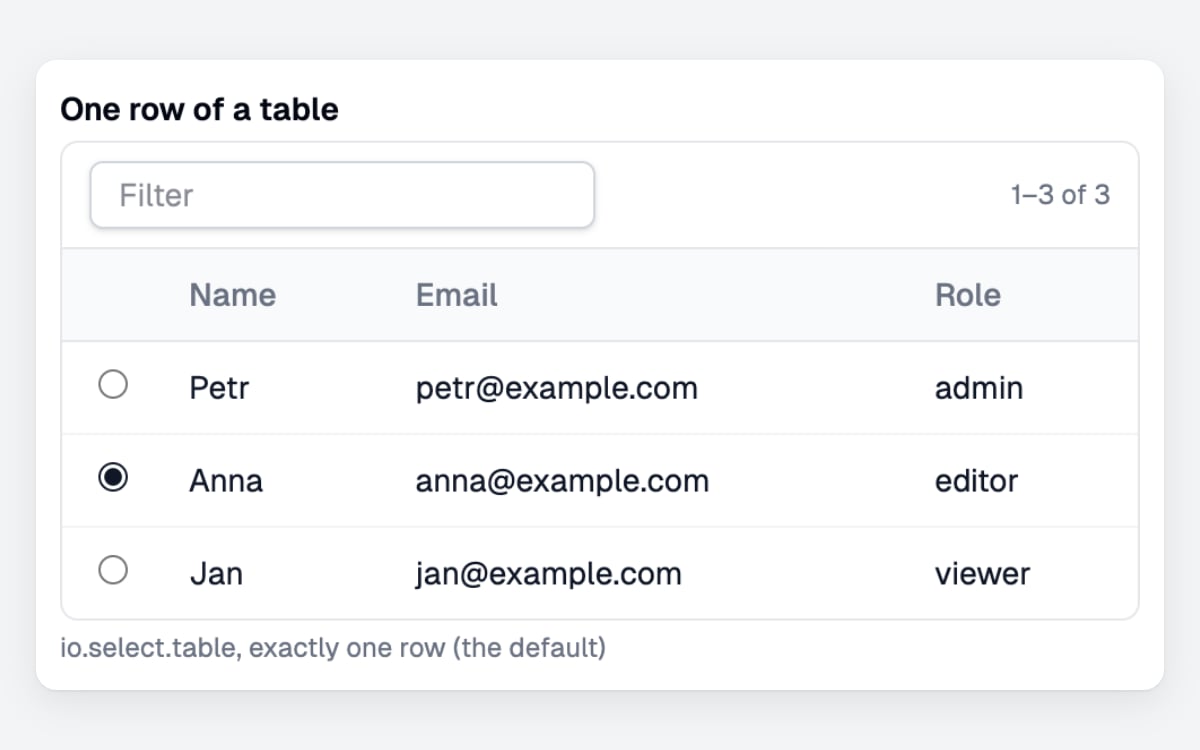
Select Table
io.select.table() asks to pick rows of a table and returns them.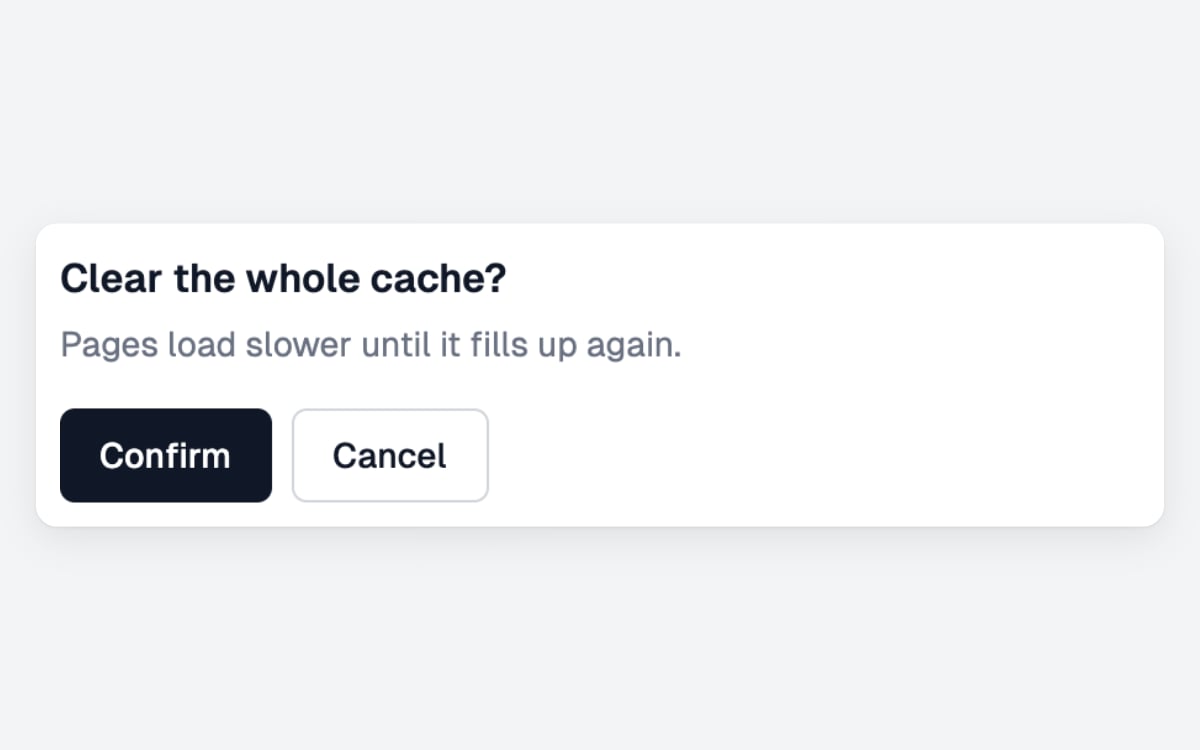
Confirm
io.confirm() asks before something irreversible and returns true for Confirm or false for Cancel.Optional fields
Every input is required unless you chain.optional() to it. The field is marked optional next to its label, can be left empty, and the handler gets undefined for it; the component’s own checks, such as minLength, run only when something was filled in:
.optional(!user.isAdmin). Text with only spaces and nothing picked in a multiple select count as empty.
Custom validation
Chain.validate() to any input for a check of your own on top of the component’s. The function gets the value the handler would get and returns a message, or nothing when the value is fine. The message shows under the field and the person answers again; the handler continues only once it returns nothing:
- It runs on the server, so it can be async and use your database; the browser cannot skip it.
- It runs only after the component’s own checks pass, so
codeabove is never empty. An optional field left empty and a disabled field skip it. - A function that throws fails the run, like an error thrown in the handler.
- For a check across several fields, chain
.validate()toio.group.
Disabled fields
Every input takesdisabled: true next to its own props. The field shows its starting value, usually defaultValue, and cannot be changed, and the server hands the handler that value whatever the browser sends:
The key is the name
The path of keys to a component becomes its method onio: input: { text: inputText } gives io.input.text(). Nothing in the component decides its name, so the same component can sit under any key, and the tree can be as deep or as flat as you like:
input.text), is the component’s type: the server and the UI use it to tell components apart.
group and layout are reserved for io.group() and the layouts of pages. Neither can be a top-level key; the app refuses to start with them.Typed io
Actions get io typed from this tree. Create actions with app.defineAction() on the same instance, and every method, its props and what it returns are checked:
actions/accounts/createAccountAction.ts
io, and a wrong prop is a type error. The server checks the props and every answer again, so nothing from the browser gets past them.
Write your own
A component is one.tsx file: zod schemas for its props and its answer, a check the server runs, and the React control. For example, a star rating:
components/rating/src/rating.tsx
defineComponent() takes:
component gets:
validate runs only on the server, so the browser cannot skip it. component draws only the control; AwaitIO adds the label, the help text and the error around it, unless the component is unwrapped.
The browser half is built into the package with the Vite config from awaitio/vite:
components/rating/vite.config.mts
app.ts
input: { text: myText }, and it replaces the built-in one in every action, as long as its props and its answer fit.
Building blocks
awaitio/ui has the pieces the built-in components are made of. They have no look of their own: each one draws the block of the theme your app was created with, the theme in new AwaitIO(). A component built from them looks like the rest of the app, changes with the theme and needs no CSS.
Unwrapped components
By default AwaitIO puts your control into aField: the label above it, the help text and the server’s error under it. With wrap: false the component is unwrapped: none of that is added, and it lays out the whole field itself from the label and error it gets. Use it when the label or the error belong somewhere else, or when the field needs more than one control.
This is the rating unwrapped, drawn with Field and Hint from awaitio/ui, with the score under the stars:
components/rating/src/rating.tsx